
How to Duplicate Facebook Campaigns in Bulk: Step by Step
Rafael Moreira
Senior Performance Marketer
To duplicate Facebook campaigns in bulk, open Meta Ads Manager, tick every campaign, ad set or ad you want to copy, click Duplicate, choose where the copies go and how many you need, then review and publish. That covers most jobs. What trips people up is everything around the button: lost likes and comments, copies that restart learning, names ending in "Copy" and campaigns that need to move to another ad account.
Quick answer: In Ads Manager, select the items, click Duplicate, pick the original campaign, an existing campaign or a new one as the destination, set the number of copies, and decide whether to show existing reactions, comments and shares on the new ads. Copies inherit the original settings and start a fresh learning phase. To copy between ad accounts, export to a spreadsheet and import it.
This guide is about the mechanics. If you want the strategy behind duplicating a winner instead of editing it, read our campaign duplication strategy for scaling winners.
How do you duplicate Facebook campaigns in Ads Manager?
Meta's duplication help page describes two routes: the Duplicate action in the campaign, ad set or ad table, and copy and paste. Menu labels move around from time to time, so treat the wording below as a guide and follow what your account shows.
- Open the right tab. Go to Campaigns, Ad sets or Ads in Ads Manager, depending on the level you want to copy.
- Select the items. Tick the box next to every item. You can select several at once, which is how you bulk duplicate Facebook ads without repeating the steps.
- Click Duplicate. A dialog opens with the copy options.
- Choose the destination. For ad sets and ads you can keep the copy in the original campaign, send it to an existing campaign or create a new campaign. For ads you also pick the ad set.
- Set the number of copies. Useful when you want, say, three identical ad sets that you will then point at three different audiences.
- Decide on engagement. Tick the option to show existing reactions, comments and shares on the new ads if you want to keep social proof (more on this below).
- Edit and publish. The copies open for review. Change what needs changing, then publish.
Copy and paste works too: select rows, press Ctrl+C (Cmd+C on a Mac), then paste. Meta's cross-account help page says the clipboard is limited to one ad account in one browser window at a time.
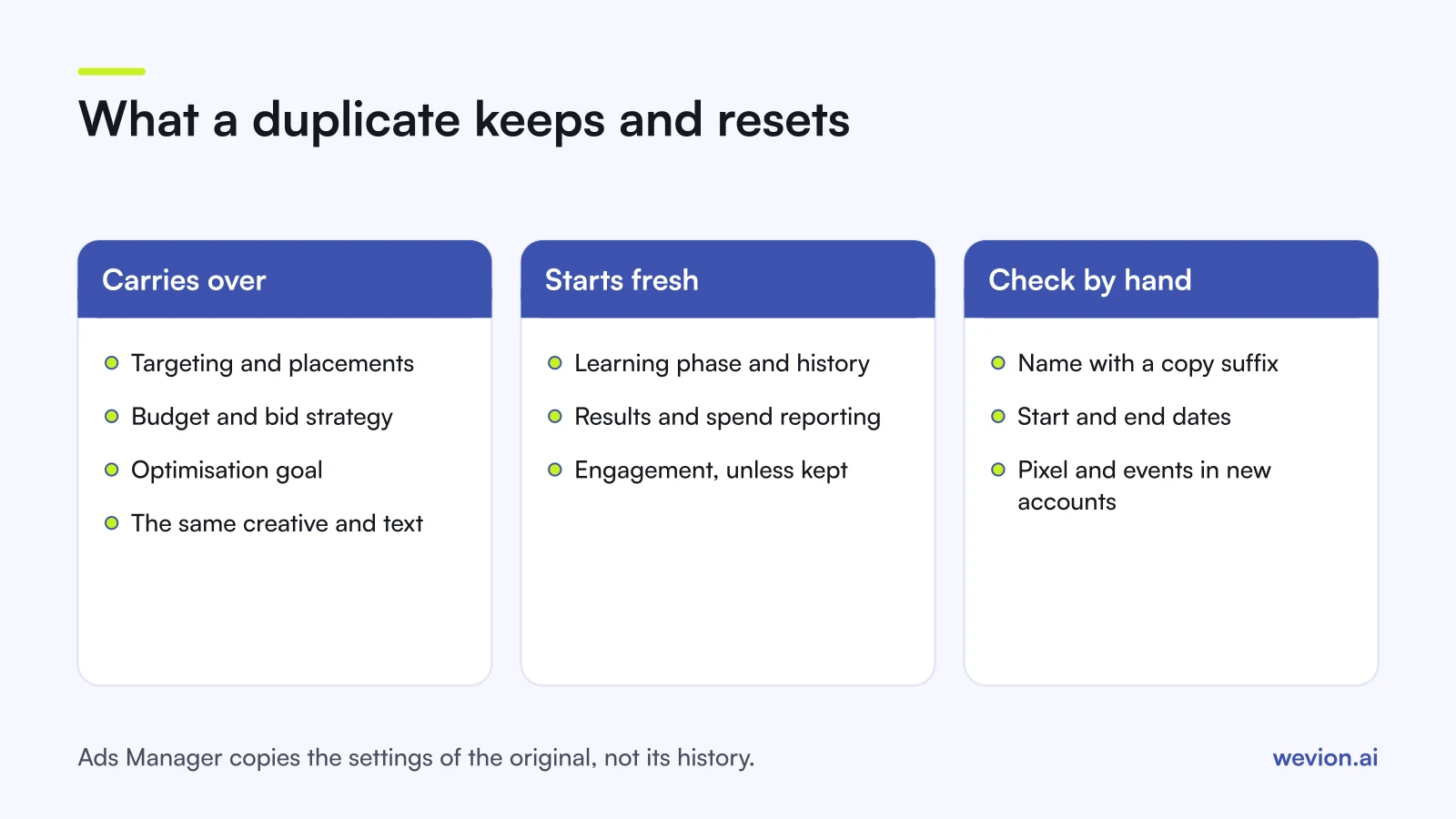
What carries over when you duplicate, and what resets?
A duplicate copies the settings of the original, not its history. Meta's API documentation for copying an ad puts it plainly: without overrides, "the new ad will be created with an identical ad creative". The table below sums up what to expect.
| Item | Carries over | Starts fresh or needs a check |
|---|---|---|
| Targeting, placements, optimisation goal | Yes | Change them after copying if the copy is a test |
| Budget and bid strategy | Yes | Mixed daily and lifetime budgets can't be bulk edited together |
| Creative and ad copy | Yes, identical | Edit before publishing if you are testing a new angle |
| Likes, comments and shares | Only if you tick the option | Off means a new ad with no visible engagement |
| Learning phase and delivery history | No | Each copied ad set learns from scratch |
| Results and spend | No | The copy reports from zero, the original keeps its data |
| Name | Yes, plus a suffix | Rename to your convention before publishing |
| Schedule | Usually yes | Check start and end dates, especially on finished ad sets |
| Campaign setup type | Check | Meta's help centre notes that some campaigns created with manual settings are duplicated with Advantage+ settings turned on |
Two details come from Meta's API reference for ad set copies: if you copy an ad set that has already finished, the copy is scheduled to start when it is created and runs for the same duration as the original; and a suffix such as "- Copy" is added to the name unless you set your own. Both explain the strange dates and names people find after a bulk duplicate.
How do you keep social proof when duplicating Facebook ads?
Social proof survives a duplicate only when you choose to keep it. In the Duplicate dialog, Meta offers the option to show existing reactions, comments and shares on new ads. With it on, the copy displays the engagement of the original post. With it off, the copy is a new ad with an empty comment section.
Keep it on when you are moving a proven ad into a new ad set or audience and the creative stays the same. Turn it off when you change the image, video or main text, because the old comments may no longer match what the ad says. Meta adds one limitation: if the creative was customised for specific placements, you can carry over its engagement only once.
Does duplicating reset the learning phase?
Yes for the copy, no for the original. A duplicated ad set is a new ad set, so it has no delivery data of its own and starts learning. Meta's learning limited page says an ad set leaves learning after about 50 optimisation events in the week after its last significant edit.
That number shapes how many copies you can afford. A worked example with hypothetical figures: your cost per purchase is €20, so one ad set needs about €1,000 a week (50 × €20), or roughly €143 a day, to have a fair chance of leaving learning. Duplicate four winning ad sets three times each and you have 12 new ad sets that would need about €1,716 a day between them. If your budget is €600 a day, make fewer copies. Our learning phase guide covers the rest.
When should you duplicate and when should you edit?
Duplicating protects a running ad set from changes, while editing keeps its history. Meta's last significant edit page lists changes to targeting, creative and the optimisation event among edits that can restart learning, and budget or bid changes depending on their size.
| Situation | Duplicate | Edit in place |
|---|---|---|
| Testing a new audience or creative next to a winner | Yes | No |
| Same structure in a new country or language | Yes | No |
| Fixing a typo or a broken URL | No | Yes |
| Small budget increase on a stable ad set | No | Yes |
| Switching a campaign from ad set budgets to a campaign budget | Yes, into a new campaign | No |
| A campaign that is messy after months of edits | No, rebuild it clean | No |
For the budget question in that table, see CBO vs ABO.
How do you bulk edit the copies?
Most duplicates need the same change, and the multi-select Edit pane handles it. Meta's ad set editing page describes ticking several ad sets and clicking Edit to change audience, budget and schedule together. The limit to remember: you can't adjust budgets across a selection that mixes daily and lifetime budgets.
For bigger changes, use a spreadsheet. Meta's Excel editing guide explains exporting selected items, editing the file and importing it back. You can change any field except Ad ID, Campaign ID and Image hash, and Meta warns that some edits may restart learning or trigger a new ad review.
How do you copy campaigns to another ad account?
Copies cannot jump between ad accounts with the Duplicate button. Meta's cross-account help page describes an export and import instead:
- In the source account, select the ads and export the selected items as an .xlsx file.
- In the file, clear the Campaign ID, Ad set ID and Ad ID columns, leaving the first row in place.
- In the destination account, use the import option in Ads Manager and upload the file.
- Review the import, fix any errors it reports, then select the new ads and publish.
Before publishing, check that the destination account has the right pixel or dataset, conversion events and page access. A campaign optimising for an event the new account never receives will spend without learning. If you run many client accounts, our guide to managing multiple Meta Business Manager accounts covers the access side.
How should you name duplicated campaigns?
Rename every copy before you publish, because a list of "Copy" and "Copy 2" names becomes impossible to read within a week. A pattern that sorts well:
{Offer} | {Audience} | {Creative} | {Country} | {Launch date} | v{n}
Example: Spring Bundle | Broad | UGC video | UK | 2026-11-12 | v1, then v2 for the next copy. Our naming convention system has a full template, and the export and import route is handy for renaming dozens of copies at once in a spreadsheet.
Where Wevion fits
Duplicating is the right tool when you need a few copies of something that already exists. When the job is many variations, or the same structure across several ad accounts, rebuilding from a template is often faster than copying and editing.
Wevion connects Meta, Google, TikTok, Taboola, Snapchat and Outbrain ad accounts through each platform's official API, syncs data about every 15 minutes, and shows spend and results for every account in one view, so originals and their copies can be compared side by side.
Bulk Launch works from a grid. Saved templates keep targeting, budget and bid strategy; each row carries its own ad account, page and budget, so one launch can cover several accounts; and you can paste rows straight from Google Sheets or Excel. Every row is validated before anything reaches Meta, a Launch as paused switch creates everything paused for review, and failed rows can be fixed and relaunched without duplicating the ones that already went live. For the planning side, see our guides to bulk creating Facebook campaigns and the ad launch checklist.
You can try it on your own ad accounts with a 14-day trial on the Pro plan. No card to start. We ask for one on day 7, or earlier if you use up the trial credits, and billing starts on day 14 only if you add it.
Key takeaways
- Select items in Ads Manager, click Duplicate, choose the destination and the number of copies, then review and publish.
- Copies keep settings and creative, but start a new learning phase and report from zero.
- Likes, comments and shares carry over only if you tick the option to show existing engagement.
- Check names, dates and whether Advantage+ settings were switched on in the copy.
- Use the multi-select Edit pane or a spreadsheet export and import to change many copies at once.
- To move campaigns between ad accounts, export, clear the ID columns and import.