
Merchant Center Multi-Client Account: An Agency Guide
Marta Kowalczyk
Agency Operations Lead
A Merchant Center multi-client account lets one business manage several Google Merchant Center accounts, called sub-accounts, from a single parent account. Google's help calls the request an advanced account setup, and the structure it creates a multi-client account, or MCA. For agencies, it is one of three ways to work on client product data, and often not the right one. This guide explains when it fits, how to set it up and how it links to Google Ads.
Quick answer: If your clients already own their Merchant Center accounts, do not convert anything: ask each client to add your team as users, or link their accounts to a Merchant Center for Agencies account. Request an advanced account setup only when your agency creates and runs Merchant Center accounts for clients itself. Either way, each Merchant Center account links to the client's own Google Ads account, not to your manager account.
This guide covers the Merchant Center side. For the Google Ads side, read our guide to the Google Ads MCC. For the campaigns that use the products, see our Google Shopping ads guide and our product feed optimisation guide.
What is a Merchant Center multi-client account?
A multi-client account is a parent Merchant Center account that holds sub-accounts. Google's help on sub-accounts describes them as individual Merchant Center accounts managed under an advanced account structure called a Multi-Client Account. Each sub-account can have a distinct name, its own website URL and its own data sources.
Google's page on requesting an advanced account setup says the setup is recommended for businesses that manage multiple sellers and domains at scale, and lists store builders, marketplaces, merchants with several brands on different domains, international retailers and channel partners. Agencies appear in its examples too, such as agencies that manage their customers' feeds.
Two details from Google's documentation matter for agencies:
- Sub-accounts inherit from the parent. Google's Merchant API guide on creating accounts says client accounts inherit the Merchant Center Terms of Service the parent signed, and that user access is inherited from the parent advanced account. A sub-account created from the MCA also inherits the parent's country.
- The parent controls the children. The same guide notes that deleting an advanced account also deletes all its sub-accounts.
So whoever holds the MCA controls every account under it. That suits a retailer with several brands. For an agency, it raises the ownership question our guide to agency ad account ownership answers: the client should own its assets.
Which access option should an agency use?
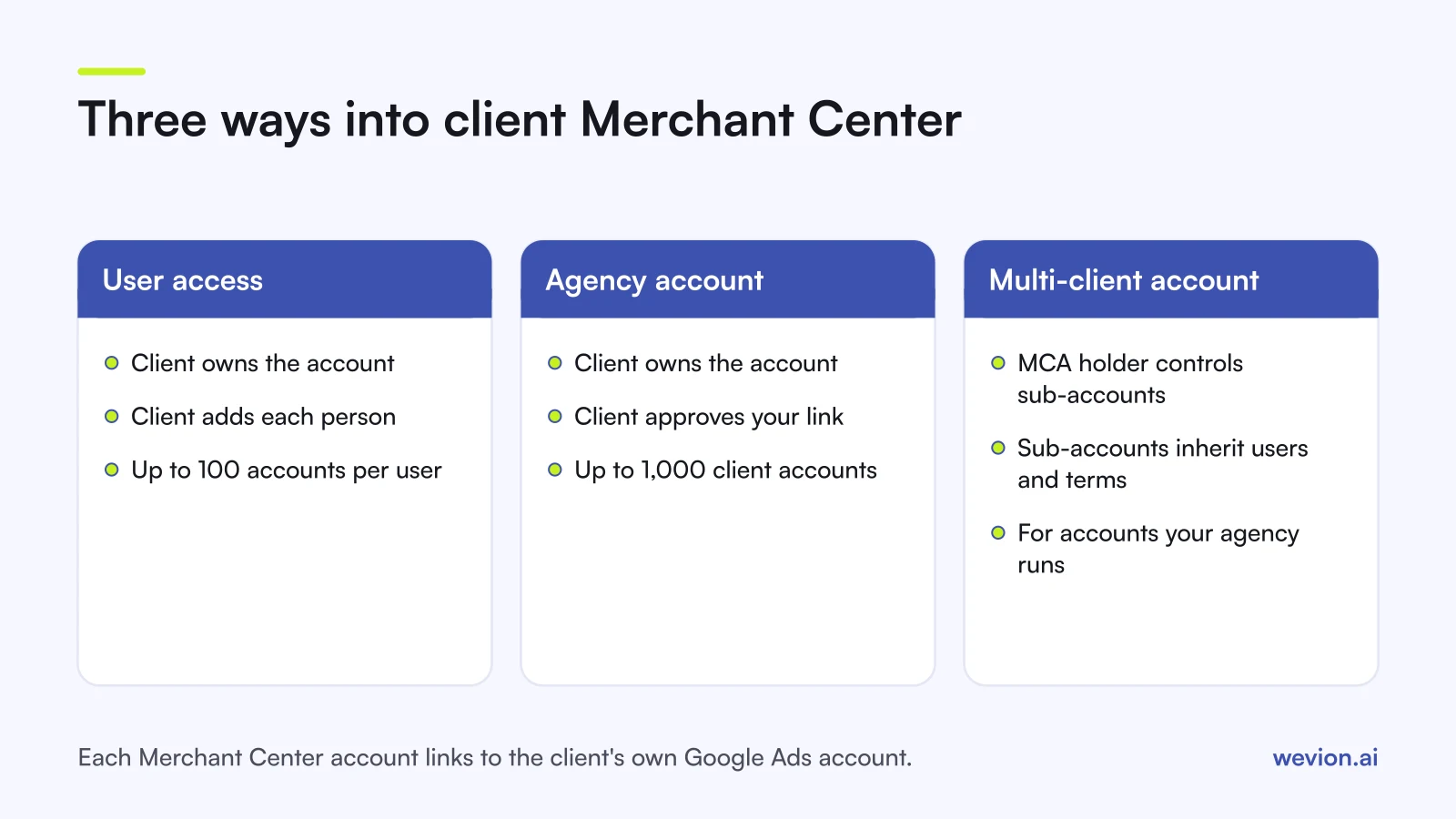
Agencies have three ways to work on clients' Merchant Center accounts, and the right one depends on who owns the accounts and how many clients you run.
| User on the client's account | Merchant Center for Agencies | Advanced account (MCA) | |
|---|---|---|---|
| Who owns the account | The client | The client | Whoever holds the MCA |
| How you get access | Client adds each person | Client approves a link to your agency account | You create or convert the accounts |
| Scale | Up to 100 accounts per user | Up to 1,000 linked client accounts | Many sub-accounts under one parent |
| Best for | A few clients, small team | Many client-owned accounts | Accounts your agency builds and runs |
User on the client's account. The simplest route. A client admin opens Access and services, then the People and access tab, selects Add person, enters the email and picks an access type. Google's people and access page lists the types: admin, standard, read-only, email-only, performance and insights, and a few specialist ones. It also says a single user can be added to a maximum of 100 Merchant Center accounts.
Merchant Center for Agencies. A separate agency account that links to client accounts. According to Google's page on managing user access for agencies, you link a client from All client accounts with Add an account, enter the client's Merchant Center ID, choose the access type and select Request link. The client's admin approves it, and can remove the agency later from the Partners section of People and access. You can link up to 1,000 client accounts and use labels to limit which clients each standard user sees. Google's about page says new agency accounts are requested through a contact form, that the agency must already be linked to at least one active Merchant Center account, and the access page notes the feature is available on a limited basis.
Advanced account (MCA). The agency holds the parent and the clients live under it. Choose it when you build Merchant Center accounts for clients who do not have one and you run their feeds end to end, and write down in the contract what happens to those sub-accounts if the client leaves.
Here is a hypothetical case that adds up. An agency has 5 people and 12 ecommerce clients, each with its own Merchant Center account. As individual users, that means up to 60 invitations (5 × 12), and every new hire needs 12 more. With a Merchant Center for Agencies account, the clients approve 12 links once, and the agency adds or removes its 5 people in one place.
How do you request an advanced account setup?
You convert an existing standalone Merchant Center account, which then becomes the first sub-account under a new MCA. Google lists four requirements: you must be an account admin, the account cannot already be an MCA or a sub-account of one, it cannot have an account-level policy violation, and its website URL must be verified and claimed.
- In Merchant Center, select the Settings gear icon in the left menu.
- Select General.
- Under the Account setup tab, go to the Advanced account setup section.
- Select Request Conversion.
- Choose the options that best describe your business.
- Select Request.
Google says requests may take a few days, and you get an email when it is complete.
Google's current help does not describe a self-serve way to move an existing client account, created separately, under your MCA. If you need that, ask Merchant Center support before you promise it to a client.
How do sub-accounts and website verification work?
Each sub-account is a full Merchant Center account with its own products, data sources and website. The part that trips agencies up is the website claim.
Google's advanced account page explains that the parent MCA usually verifies and claims the top-level domain, and sub-accounts whose URLs are sub-hosts or paths under it inherit the claim. When sub-accounts belong to different online stores, which is the normal agency case, Google describes three approaches:
- The parent manages the URLs directly for each sub-account.
- Each sub-account verifies through its own Search Console and shares the status with the parent.
- The store owner is added as a user of the sub-account and verifies and claims the URL there.
For most agency clients, the third option keeps the claim with the business that owns the website.
Watch the country too: a sub-account created from the MCA inherits the parent's country, which Google says can affect eligibility for some programmes and needs support to change later.
How do you manage user access?
Keep access as narrow as the work allows. In a client's own account, Google notes that standard users can edit product data and settings, but cannot manage people, add or remove apps, or link Google Ads accounts, which is a sensible default for most of an agency's team.
In Merchant Center for Agencies, the access page describes three setups:
- Universal: everyone is an admin with full access to all linked clients. Google suggests it for small agencies.
- Permission control: a mix of admin and standard users.
- Advanced: labels assigned to groups of clients, with standard users given access to specific labels. Google suggests it for larger agencies.
Your agency's access to a client caps what any of your users can do there: if the client granted standard access, your admins only get standard access to that client.
When someone leaves, remove them before you forget. In a client's own account, check first that the person is not tied to the website verification: Google warns that removing them would lose the verification and claim. Our guide to removing agency access covers the full exit on Merchant Center, Google Ads and Meta.
How does Merchant Center link to Google Ads?
You link each Merchant Center account to a Google Ads account, one pair at a time, because Google's linking help is direct: you cannot link a Google Ads manager account to Merchant Center. The manager account is still how you run the Google Ads side for many clients.
From Merchant Center, an admin opens Access and services under Settings, goes to the Apps and services tab, selects Add service, picks Google Ads and the account, and selects Link. A Google Ads admin then approves the request in Google Ads, under Tools, then Data manager, in the Received tab. If one person is an admin on both accounts, the link is approved automatically.
Google lists a few rules worth knowing:
- One Merchant Center account can link to up to 500 Google Ads accounts.
- A campaign can use only one Merchant Center account at a time.
- If you start the request through a manager account, the manager account must own the child accounts.
- If you unlink, campaigns that rely on that product data stop serving.
For an agency, the clean pattern is simple: each client's Merchant Center account links to that client's Google Ads account, and that Google Ads account is linked to your manager account. Our Performance Max campaign structure guide covers how to organise the campaigns that use the feed.
What are the common mistakes?
Most Merchant Center access problems come from choosing a structure for convenience instead of ownership:
- Converting a client's account into your agency's MCA when a user invitation or an agency link would do.
- Creating client sub-accounts without a written exit plan.
- Tying website verification to an agency user, so removing that user breaks the claim.
- Giving every team member admin access when standard access covers product and feed work.
Where Wevion fits
Merchant Center holds the product data; checking spend and results for each client across platforms is where an agency spends its daily time.
Wevion connects Google Ads, Meta, TikTok, Snapchat, Taboola and Outbrain through each platform's official API, syncs data about every 15 minutes, and gives every client its own workspace, so you see Shopping and Performance Max results next to Meta and TikTok for each client. Team roles such as manager, media buyer, finance and viewer keep each person to the clients they work on, and automated rules can pause, activate, change budgets or just send an alert.
Wevion does not manage Merchant Center accounts or feeds: those stay in Merchant Center, set up as described above.
You can try it on your own ad accounts with a 14-day trial on the Pro plan. No card to start. We ask for one on day 7, or earlier if you use up the trial credits, and billing starts on day 14 only if you add it.
Key takeaways
- A Merchant Center multi-client account is a parent account with sub-accounts; Google calls the request an advanced account setup.
- Sub-accounts inherit the parent's terms, user access and country, and deleting the parent deletes them.
- If clients own their accounts, use user access or Merchant Center for Agencies instead of an MCA.
- One user can join up to 100 accounts; an agency account can link up to 1,000 clients.
- Request the conversion under Settings, General, Advanced account setup, as an admin with a verified website.
- Link each Merchant Center account to the client's Google Ads account; a manager account cannot be linked.