
Snapchat Pixel Setup: Install, Test and Add the Conversions API
Priya Raghunathan
Responsable performance e-commerce
A clean snapchat pixel setup has three parts: install the Snap Pixel so it fires the right standard events with the right parameters, test it before you spend, and add the Snapchat Conversions API with deduplication so the server fills gaps without counting a purchase twice. This guide covers each part from Snap's own developer documentation, plus the attribution windows that decide how Snap reports what the Pixel records.
Quick answer: Create a Pixel in Events Manager, install it directly, through Google Tag Manager or with the Snapchat Ads app for Shopify, and fire PAGE_VIEW, VIEW_CONTENT, ADD_CART, START_CHECKOUT and PURCHASE with price, currency and an order ID. Check it with the Snap Pixel Helper and Events Manager. Then add the Conversions API, sending the same ID as client_dedup_id on the Pixel and event_id on the server.
If you are new to the platform, start with our Snapchat Ads Manager guide for ecommerce, which covers account setup, catalogues and creative. This article goes deeper on tracking only.
What does the Snap Pixel do?
The Snap Pixel is a JavaScript snippet that records what people do on your website after they see or swipe on a Snapchat ad. Those events feed three things: reporting in Ads Manager, optimisation towards conversion goals, and website audiences. Snap's audience documentation says website custom audiences require the Pixel to be installed.
You create the Pixel in Events Manager inside Snapchat Ads Manager and get a Pixel ID. Everything below sends events to that ID, so check it twice: a wrong ID means events fire in the browser and never reach your account.
How do you install the Snap Pixel?
There are three common routes. Pick one per site and stick to it.
| Route | How it works | Best for | Watch out for |
|---|---|---|---|
| Direct | Base code in the site head, snaptr('track', ...) calls on each event | Custom stacks with a developer | Event code on every template |
| Google Tag Manager | Base code in a tag on all pages, event tags on triggers | Teams already on GTM | Firing PAGE_VIEW twice |
| Snapchat Ads app for Shopify | Create or connect the Pixel during app setup | Shopify stores | Leftover manual code in the theme |
Direct install. Paste the base code from Events Manager into the head of every page. It initialises the Pixel with your ID and typically includes a PAGE_VIEW call. Then add a track call for each event, with its parameters, on the page or action where it happens.
Google Tag Manager. Load the base code in a tag that fires on all pages, then add one tag per event on the matching trigger, reading values such as the order ID and total from your data layer. Use GTM's preview mode while you build. If your router or a template already sends PAGE_VIEW, make sure the first page shows one page view, not two.
Shopify. Snap's Shopify page says that during app setup you "check the box to create or connect your Snap Pixel". The App Store listing, published by Snap, says the app installs the Pixel "in one click" and syncs your product catalogue for dynamic ads. Neither page mentions the Conversions API, so check inside the app which server-side options it offers today before you assume they are on.
Which standard events and parameters should you send?
Snap's Conversions API parameters page lists the standard event names, which the Pixel uses too. For an ecommerce store, these cover the funnel:
| Event | When it fires | Parameters worth sending |
|---|---|---|
| PAGE_VIEW | Every page load | None needed |
| VIEW_CONTENT | Product page view | Product ID, price, currency |
| ADD_CART | Add to basket | Product ID, price, currency |
| START_CHECKOUT | Checkout begins | Basket value, currency |
| PURCHASE | Order confirmation | Price, currency, transaction_id, client_dedup_id |
| SIGN_UP | Account or email sign-up | client_dedup_id |
Three rules matter more than the event list:
- One action, one event. A purchase fires once, on the confirmation page, not again on refresh.
- Real values. Price and currency on PURCHASE should match the order in your store admin. Snap's Conversions API test tool flags a Purchase event without price or currency as invalid.
- Product IDs that match your catalogue, if you plan to run dynamic ads.
How do you test the Pixel?
Test before any budget goes live, and again after every site release.
- Snap Pixel Helper. A Chrome extension offered by Snap Inc. to verify, debug and troubleshoot Pixel installs: open your site with it active and see which events fire. Check the publisher before you install: lookalike extensions exist in the Chrome Web Store.
- Events Manager. Snap's Verify Set Up page says you can view test events there.
- A real order. Place one, then compare the PURCHASE value, currency and transaction ID with the order in your store.
For the server side, the same page documents a test event endpoint that validates events without sending production data, plus logs for the past 24 hours and stats for the past hour, and a Request Check Tool that checks a request before you send events.
How do you add the Conversions API without double counting?
Snap's best practices recommend that web advertisers implement the Conversions API alongside the Pixel. The browser loses some events to ad blockers, cookie limits and pages that close too early; the server can still send them. The cost is that Snap now receives the same purchase twice, so it needs a way to tell they are one.
What the server sends. The parameters page sets the main fields:
action_sourceset to WEB, and anevent_timeno more than 7 days in the past.sc_click_id, taken from the ScCid parameter in the landing page URL, andsc_cookie1, the value of the_scidfirst-party cookie. Neither is hashed.client_ip_addressandclient_user_agentfrom the visitor's device, not your server. Not hashed.emandphfor email and phone, normalised and then hashed with SHA256. Emails are trimmed and lowercased; phone numbers keep the country code and drop symbols and leading zeros.
How deduplication works. Snap's deduplication guide sets the rules:
- The Pixel's
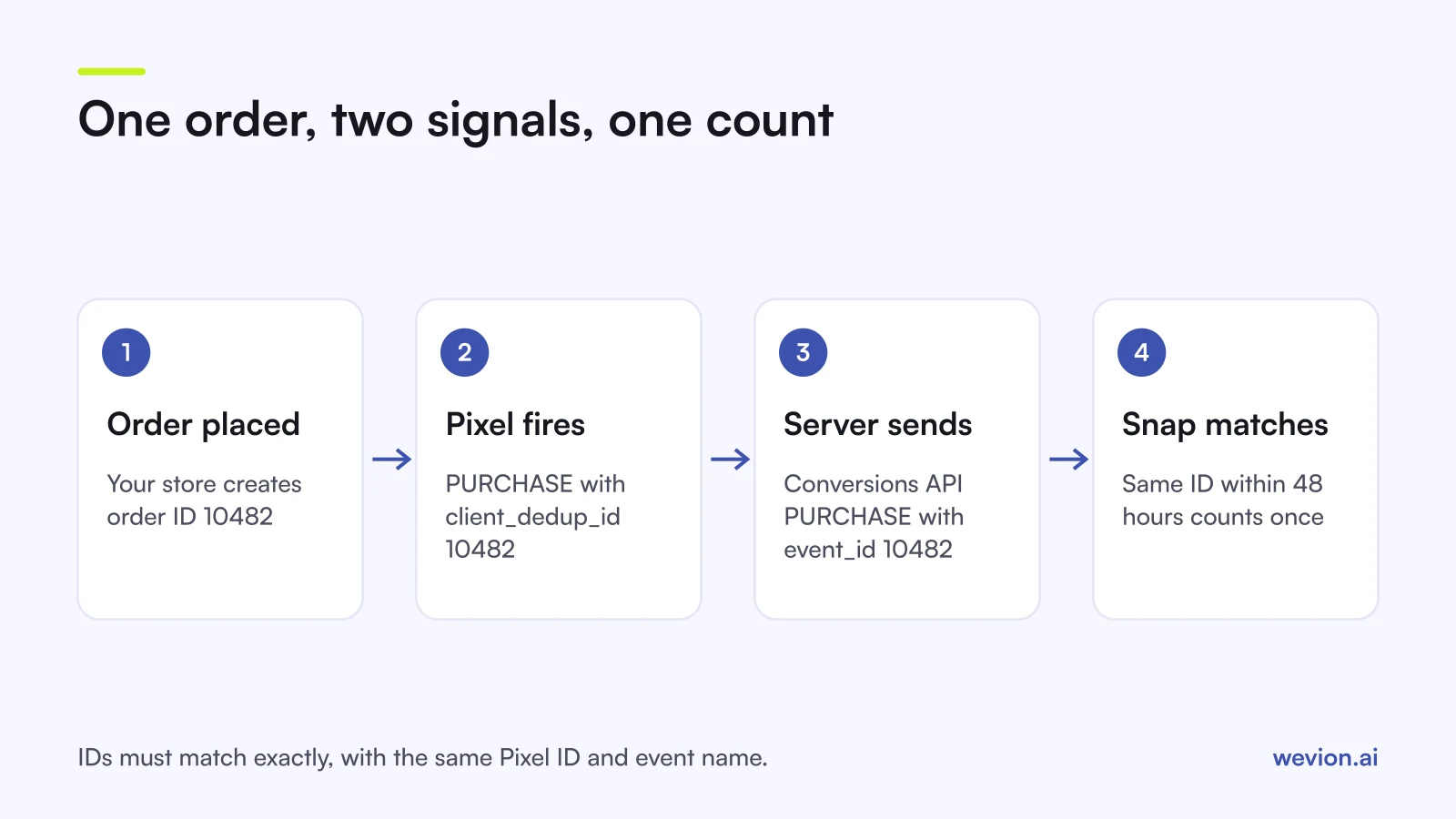
client_dedup_idmust equal the API'sevent_id, character for character, with the same Pixel ID and the same event name. Snap matches this pair within 48 hours. - For PURCHASE, the Pixel's
transaction_idand the API'sorder_id(insidecustom_data) hold the same value, and Snap matches them within up to 30 days as a fallback. - Each ID must belong to one conversion. Reuse an ID across orders and Snap may collapse them into one.
- If you leave
client_dedup_idout, the Pixel generates a browser-only ID that your server can never match. Set it explicitly.
A worked example. Order 10482 for $64 is placed. The browser fires PURCHASE with client_dedup_id 10482 and transaction_id 10482. Two minutes later your server sends PURCHASE with event_id 10482 and order_id 10482 to the same Pixel ID. Snap sees one purchase of $64. If the browser event was blocked, the server event still records it. If the two IDs differ, for example "10482" against "#10482", Snap may count two purchases of $64.
If you already send server events to Meta, the logic is the same; our guide to server-side tracking on Shopify covers the routes stores use.
Which attribution windows does Snap offer?
Attribution windows decide how long after a swipe or a view Snap credits a conversion to an ad. Snap's measurement documentation lists:
| Window | Options | Default |
|---|---|---|
| Swipe (click) | 1 day, 7 days, 28 days | 28 days |
| View | None, 1 hour, 3 hours, 6 hours, 1 day, 7 days | 1 day |
The 28-day view window is deprecated. The defaults are generous, so Snap's numbers will run higher than your store's last-click view and will not match Google Analytics. That is expected. Decide which window you report on, use the same one when you compare weeks, and keep your store as the source of truth for revenue. Our guide on ad platforms double counting conversions explains how to reconcile platform totals with orders, and the UTM parameter guide covers tagging Snapchat clicks so your analytics tool can credit them.
What are the common Snap Pixel mistakes?
- Two installs at once, such as the Shopify app plus manual theme code, so every event fires twice.
- No
client_dedup_id, so Pixel and server events never match. - IDs that almost match, with a prefix, a space or a different case on one side.
- Hashing the wrong fields, such as
sc_click_idor the IP address, which Snap wants unhashed, or sending email unhashed. - The server's IP and user agent instead of the visitor's.
- Optimising towards PURCHASE with very few purchases. Check that the event fires reliably before you build campaigns around it; our Snapchat ads campaign structure guide covers how to set up ad sets.
Where Wevion fits
Wevion does not install the Snap Pixel, send Conversions API events or deduplicate them. That stays with the Pixel, your server or your Shopify app.
Wevion connects Snapchat, Meta, Google, TikTok, Taboola and Outbrain ad accounts through each platform's official API, syncs data about every 15 minutes and shows platform-reported spend and conversions side by side in one view. If Snapchat purchases drop while orders hold, you see it next to the other platforms, and automation rules can pause ad sets, change budgets or just send an alert. If you are deciding where Snapchat fits, our TikTok vs Snapchat ads comparison helps.
You can try it on your own ad accounts with a 14-day trial on the Pro plan. No card to start. We ask for one on day 7, or earlier if you use up the trial credits, and billing starts on day 14 only if you add it.
Key takeaways
- Install the Snap Pixel one way only: directly, through GTM or with the Snapchat Ads app for Shopify.
- Fire standard events once per action, with real price, currency and a unique order ID on PURCHASE.
- Test with the Snap Pixel Helper, Events Manager and a real order.
- Add the Conversions API with the same ID as
client_dedup_idandevent_id; Snap matches it within 48 hours, andtransaction_idwithorder_idwithin up to 30 days. - Hash email and phone with SHA256; never hash the click ID, cookie, IP or user agent.
- Snap's default windows are 28-day swipe and 1-day view; compare weeks on the same window.