
Ad Spend Alerts: How to Set Them in Meta, Google and TikTok
Rafael Moreira
资深效果营销专家
Ad spend alerts are notifications that tell you when spend, budget use or cost per result crosses a line you set, without changing anything in the campaign. They are the safest automation there is: nothing gets paused by mistake, and a person decides what to do. Meta, Google Ads and TikTok can all send them natively, but each one checks at a different speed and delivers in a different way.
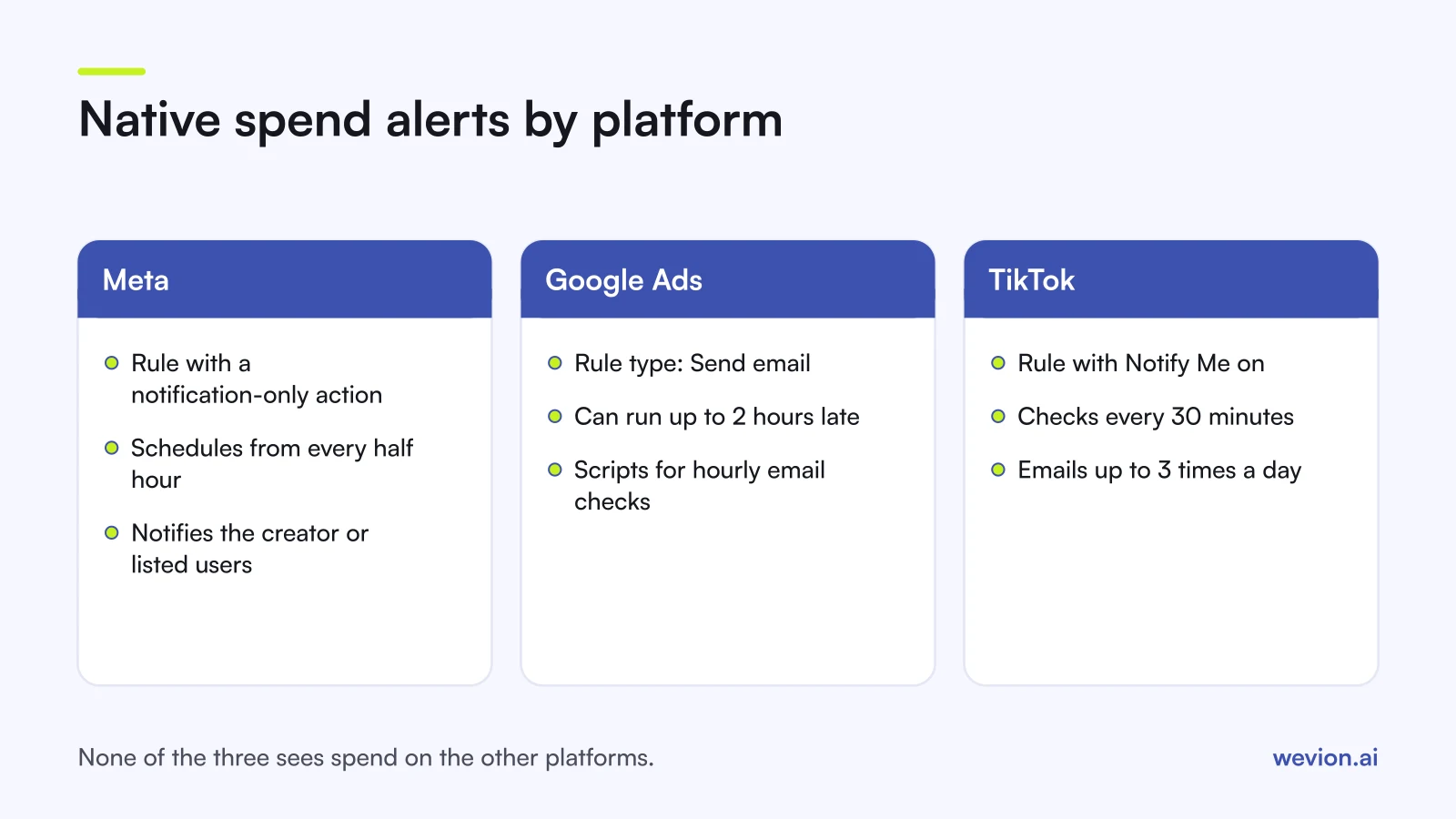
Quick answer: In Meta, create an automated rule with a notification-only action. In Google Ads, create a rule with the type Send email, or use a script for hourly checks. In TikTok, create an automated rule and switch on Notify Me. Set three alerts per account: spend pace, budget use and cost per result with a minimum spend. Expect checks every 30 minutes on Meta and TikTok and up to two hours of delay on Google rules.
This guide is about alerts that only notify. For rules that pause or change budgets, see our guides to Google Ads automated rules and TikTok Ads automated rules. For a hard ceiling that stops spend altogether, see the ad account spending limit.
Which ad spend alerts do you actually need?
Most accounts need three ad spend alerts, each answering a different question: is money going out faster than planned, is a budget about to run out, and is the money buying results at an acceptable cost. More alerts than that tend to be ignored.
| Alert | Question it answers | Example condition | Time range |
|---|---|---|---|
| Spend pace | Is today running hot? | Amount spent today above 150% of the daily budget | Today |
| Budget use | Will a lifetime or monthly budget run out early? | 80% of lifetime budget spent | Lifetime or this month |
| Cost per result | Is spend buying results? | Cost per result above 1.5 times target and spend above 2 times target | Last 3 days |
The cost per result alert needs the minimum spend condition. Without it, a single expensive conversion early in the morning fires the alert, and after a week of false alarms nobody reads it. For which other alerts earn a place, see our list of ad alerts that actually matter.
How do you set spend alerts in Meta Ads Manager?
You set spend alerts in Meta Ads Manager with an automated rule whose action only sends a notification. Meta's rule engine documentation lists a notification action that changes nothing, next to actions that pause, unpause, change budgets or change bids. The notification goes to the rule's creator, or to the users listed on the rule.
The steps:
- Open Automated rules from the Ads Manager menu and create a rule.
- Choose what it applies to: campaigns, ad sets or ads.
- Pick the notification-only action, listed in Ads Manager as Send notification only.
- Add conditions, such as amount spent above a value, and a time range such as Today or Last 3 days.
- Choose the schedule and the people who receive the notification, then save.
Meta's documentation on schedule-based rules lists schedules that run every half hour, every hour, daily at midnight in the ad account's time zone, or on a custom schedule. For a spend pace alert, check often. For a cost per result alert on three days of data, daily is enough.
Two Meta specifics help. Set spend pace alerts at the level where the budget sits: the campaign with campaign budget, the ad set with ad set budgets, as our guide to budget pacing on Facebook ads explains. And pair the alert with an account spending limit, which stops all spend at a fixed total no matter what any rule does.
How do you set spend alerts in Google Ads?
You set spend alerts in Google Ads with an automated rule of the type Send email, or with a script when you need checks more often than a rule allows. Google's page on common uses of automated rules gives the spend alert as its own example: a rule that runs daily at noon and emails you if a campaign has spent more than $50 that day, created by selecting Send email as the type of rule.
Three Google details shape the setup:
- Rules are not punctual. Google's help pages say the standard turnaround is up to two hours after the scheduled time, so a 9 a.m. rule can run any time until 11 a.m.
- Daily budgets flex. Google's page on overdelivery says a campaign "might spend up to twice your average daily budget" on a given day, and no more than 30.4 times the average daily budget over a month. A spend pace alert just above the daily budget will fire on normal days; set it nearer 150% to 180%, and keep a monthly cost alert as the real control.
- Email-only rules stay on until paused. Google's rule email page says that for an email-only rule, pausing it is the only way to stop the emails.
For hourly checks, use a script. Google's Account Anomaly Detector compares today's impressions, clicks, conversions and cost with the same weekday over previous weeks, 26 by default, and sends one email when cost is too high or results are too low. Google recommends running it hourly and notes that stats can lag by up to three hours. Scripts send email through MailApp and can post to Slack through an incoming webhook, per Google's page on third-party APIs in scripts.
Manager accounts add one more layer: budget alerts for account budgets that are running low, running out or ending. Google's manager account notifications page says these update daily at 2 a.m. in the advertiser's time zone, so treat them as a daily summary, not a warning system.
How do you set spend alerts in TikTok Ads Manager?
You set spend alerts in TikTok Ads Manager with an automated rule and the Notify Me setting, which emails chosen people when the rule's conditions are met. TikTok's overview of automated rules gives "receive notifications by email when your campaigns have spent 80% of their lifetime budget" as one of the things rules can do.
TikTok's guide to creating automated rules, last updated August 2026, sets out the pieces:
- Open Campaigns, then Automated Rules, and create a rule from a template or from scratch.
- Choose campaigns, ad groups or ads under Apply rule to.
- Add up to five conditions, such as spend against lifetime budget or cost per result.
- Under Rule settings, pick Continuously (every 30 minutes), Custom (every 30 minutes on chosen days and times) or Once.
- Switch on Notify Me, add recipients from your Business Center members and pick up to three times of day for the emails.
The option "Also notify me if conditions aren't met" sends an email every time the rule runs. It is useful for the first few days, to prove the rule is checking, then switch it off. For cost per result alerts, TikTok's own guidance favours Lifetime or Last X days over Today, because a few hours of data on TikTok are noisy, as our TikTok rules guide covers.
How do you set thresholds that do not cry wolf?
You set thresholds that hold up by tying each one to a number you already plan with, the daily budget, the monthly budget or the target cost per result, and by adding a minimum spend to anything that measures cost per result.
A worked example with hypothetical numbers, for one ad set with a $400 daily budget and a target cost per purchase of $40:
- Spend pace: alert when amount spent today passes $600, 150% of the budget. Normal daily flex stays quiet; a budget typo with an extra zero does not.
- Budget use: for a $9,000 monthly plan, alert when cost this month passes $7,200, which is 80%. In a 30-day month an even pace reaches that on day 24, so an alert before then means spend is ahead of plan.
- Cost per result: alert when cost per purchase over the last 3 days is above $60, 1.5 times target, and spend over the same days is above $80, twice target.
Review after two weeks. Count the alerts that led to an action and the ones that did not. If more than half were ignored, raise the threshold or lengthen the time range. If a real problem slipped through, lower it.
How do you see every ad spend alert in one place?
You see every ad spend alert in one place only by routing them there, because each platform sends its own notifications in its own format, time zone and currency. Three native systems mean three inboxes and no view of total spend across platforms.
The options, from cheapest to most complete:
- One mailbox with filters. Send Google and TikTok emails to a shared alerts address and label them by client. Meta notifications reach the people listed on the rule, so add the same people everywhere.
- Scripts into Slack. Google Ads scripts can post to a Slack channel through an incoming webhook. That covers Google only.
- A tool that reads every platform. A monitoring tool or management platform pulls spend from each API and applies the same rules everywhere. Our comparison of Facebook ads monitoring tools covers the options, and our guide to alerts across many client accounts covers routing for agencies.
Where Wevion fits
Wevion fits when ad spend alerts have to cover several platforms or several clients at once. Native alerts work well inside one account, but none of them sees the others.
Wevion connects Meta, Google, TikTok, Taboola, Snapchat and Outbrain ad accounts through each platform's official API and syncs data about every 15 minutes, so spend and results sit in one dashboard with alerts that arrive within minutes of a change.
Its automated rules can just notify, without changing anything, or act directly: pause, activate, change budget or bid by a percentage or relaunch. Each rule has a cooldown, so it does not fire again on the same item too soon, and a daily cap on runs. There is no approval step for rules; only actions proposed by Wavo, the AI copilot, wait for your approval. Rules run per platform today, and cross-platform rules that compare platforms are in beta. Each client gets its own workspace, with team roles such as manager, media buyer, finance and viewer.
You can try it on your own ad accounts with a 14-day trial on the Pro plan. No card to start. We ask for one on day 7, or earlier if you use up the trial credits, and billing starts on day 14 only if you add it.
Key takeaways
- Ad spend alerts notify without changing campaigns, so they are the safest place to start with automation.
- Meta: an automated rule with a notification-only action; schedules can run as often as every half hour.
- Google Ads: a Send email rule, which can run up to two hours late, or a script such as the Account Anomaly Detector for hourly checks.
- TikTok: an automated rule with Notify Me, checking every 30 minutes and emailing up to three times a day.
- Set three alerts per account, spend pace, budget use and cost per result with a minimum spend, and review the thresholds after two weeks.