
Google Ads Audit Checklist: An Agency's First Week on a New Account
Marta Kowalczyk
مسؤول عمليات الوكالة
A Google Ads audit checklist for a new client is not the same list you run to win the pitch. Once the contract is signed, the first week is about making the account safe to manage: confirming who owns it, checking that conversions count the right things, and finding the settings that waste money before you change anything else. This guide gives that checklist in the order an agency should run it, with what good looks like and what to fix first.
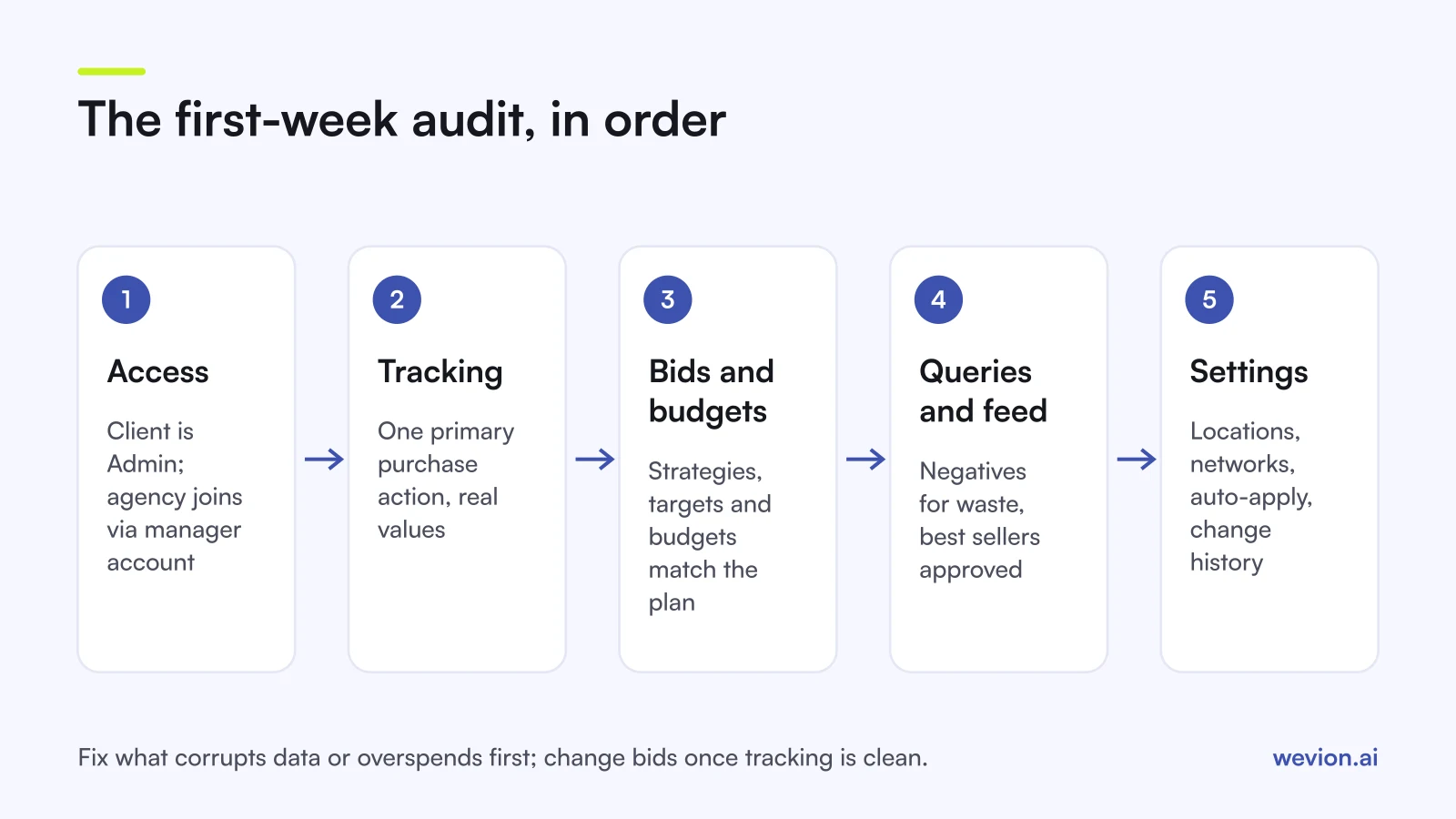
Quick answer: In week one, check access and ownership first, then conversion goals, because every bidding and reporting decision depends on them. Next review structure, bid strategies and budgets, then search terms, negatives and Merchant Center feed health. Finish with assets, location and network settings, and change history, and rank every finding by money at risk before touching bids.
If you are still pitching the client, use our cross-platform ad account audit instead: it covers read-only access, several platforms at once and how to present findings. This page assumes you have won the account and are now responsible for it.
Day 1: who owns the account, and who can get in?
Access comes first because everything you do later should happen under logins the client controls, and because former agencies or freelancers often still have access.
Google Ads has five access levels: Email-only, Billing, Read-only, Standard and Admin. Only Admin can give access, change access levels and manage links to manager accounts.
What good looks like:
- The client owns the account. At least one person on the client side holds Admin access with their own login, not a shared inbox.
- Your agency comes in through your manager account. Linking the client to your manager account keeps every client under one login; our guide to Google Ads manager accounts covers the setup.
- Old users are gone. List every user and linked manager account. Anyone who no longer works on the account should be removed; see removing agency access.
- Billing is known. Note who pays and how, so a failed payment does not stop campaigns in your first month.
Day 2: are conversions counting the right things?
Conversion tracking is the check that changes most audits, because Smart Bidding and every report you send rely on the numbers in the Conversions column.
Google groups conversion actions into conversion goals. A campaign uses either its account-default goals or campaign-specific goals, and inside each goal an action is either Primary, used for bidding, or Secondary, which shows in the "All conv." column only.
What good looks like for an ecommerce client:
- One primary purchase action. If both a Google tag purchase and a GA4-imported purchase are Primary in the same goal, the same sale can be counted twice. Keep one as Primary and the other as Secondary.
- Micro-conversions stay Secondary. Add to cart or page views as Primary will teach bidding to chase cheap actions.
- Conversion values are real. Purchase values should match order values, in the right currency.
- Enhanced conversions considered. Google's enhanced conversions supplement your tags with hashed first-party data such as email address, which can improve measurement.
- Attribution model known. Google says data-driven attribution is the default for most conversion actions; note any exceptions before you compare periods.
Compare the account's purchases and revenue for the last 30 days with the client's store figures. A gap of a few percent is normal; double the store's orders points to duplicate counting.
Days 3 and 4: structure, bidding, budgets, queries and feed
These checks take the most time, because each one needs the tracking from day 2 to be trusted before the conclusions mean anything.
Structure. Campaigns should map to how the client makes money: brand separate from non-brand search, product groups with different margins separated, and Performance Max and Shopping campaigns not left to compete for the same products by accident. Our Performance Max campaign structure guide shows common layouts.
Bidding. Note each campaign's bid strategy and target. Target ROAS and Maximise conversion value bid on conversion values, so they are only as good as the values from day 2. Compare each ROAS target with the client's break-even ROAS; our guide to Smart Bidding explains each strategy.
Budgets. Google's own rules: on a given day a campaign can spend up to twice its average daily budget, and over a month it will not charge more than 30.4 times that budget. A campaign set to €50 a day can therefore spend €100 on a busy day, but no more than €1,520 in the month. Check that the sum of all monthly limits matches what the client approved.
Search terms and negatives. Read the search terms report for the last 30 to 90 days. Google omits terms with too little query activity for privacy reasons, so treat it as a sample. Look for irrelevant terms with spend and no sales, and add them as negatives. Performance Max now supports campaign-level negative keywords, raised to 10,000 per campaign, and brand exclusions can keep Performance Max or Search away from brand queries you want handled elsewhere.
Shopping and Performance Max feed health. In Merchant Center, product problems sit under Products & store, in the Needs attention tab, and account-level setup and policy issues show in a banner at the top. Count disapproved products among the client's best sellers first. For fixes, see our guides to Google Shopping ads and product feed optimisation.
Day 5: assets, settings and change history
The last day covers the settings that quietly decide where ads show and who changed them, then turns the whole week into a fix list.
Assets. A responsive search ad takes up to 15 headlines of 30 characters and up to 4 descriptions of 90 characters. Check the Ad Strength rating of each one, and that Performance Max asset groups have images and videos that match the products they promote.
Locations. Google's location options default to "Presence or Interest", which includes people who have shown interest in your locations. A store that only ships to the UK usually wants "Presence": people in or regularly in the targeted locations.
Networks. Google says search partners are included by default when you create a Search campaign. Check whether search partners and the Display Network are on in each Search campaign, and whether that was a decision or a default.
Auto-apply recommendations. On the Recommendations page, open auto-apply settings and list what Google is allowed to change on its own. Turn off anything the client has not agreed to.
Change history. Change history shows the past two years of changes, including who paused a campaign, added a keyword or changed a budget. Read the last 90 days: a performance drop that lines up with a change is the fastest finding you will make all week.
What should the agency fix first?
The order of fixes matters more than the length of the list, so rank every finding by how much money or data it puts at risk, and fix the ones that corrupt data before the ones that only waste spend.
| Priority | Finding | What good looks like | Why first |
|---|---|---|---|
| 1 | Client has no Admin login, or old users remain | Client owns; agency via manager account | Access risk outranks everything |
| 2 | Duplicate or wrong primary conversions | One primary purchase action, real values | Bidding learns from bad data |
| 3 | Budgets above what the client approved | Monthly limits match the plan | Direct overspend |
| 4 | Irrelevant search terms with spend | Negatives in place, brand handled | Wasted spend every day |
| 5 | Best sellers disapproved in Merchant Center | No issues on top products | Lost sales on top products |
| 6 | Unreviewed auto-apply, partners, locations | Every setting chosen on purpose | Slow leaks |
| 7 | Weak assets, unclear structure | Planned rebuild after tracking settles | Needs clean data to judge |
Agree the list with the client at the end of the week, fix items 1 to 3 straight away, and plan bid or structure changes after a couple of weeks of clean conversion data.
Where Wevion fits after the audit
The audit happens inside Google Ads, but the client rarely advertises only on Google, so the next question is how you keep watching the account alongside the others.
Wevion connects Google, Meta, TikTok, Snapchat, Taboola and Outbrain ad accounts through each platform's official API, syncs data about every 15 minutes, and gives each client its own workspace with team roles such as manager, media buyer, finance and viewer, so audit findings stay visible across every platform.
You can set automated rules that pause, activate or change budgets by a percentage, or simply notify you, with a cooldown and a daily cap on runs; rules that act across platforms are in beta. The cross-channel analytics view shows Google next to Meta and TikTok in one currency.
You can try it on your own ad accounts with a 14-day trial on the Pro plan. No card to start. We ask for one on day 7, or earlier if you use up the trial credits, and billing starts on day 14 only if you add it.
Key takeaways
- Run the first-week audit in order: access, conversions, structure, bidding, budgets, search terms, feed, assets, settings, change history.
- The client should own the account with their own Admin login; your agency should work through a manager account.
- Only one purchase action should be Primary; duplicates teach Smart Bidding from inflated numbers.
- A campaign can spend up to twice its daily budget on one day but no more than 30.4 times it in a month.
- Performance Max takes up to 10,000 campaign-level negative keywords; Merchant Center lists product problems under Needs attention.
- Fix what corrupts data or overspends first, and change bids only after tracking is clean.