
Meta Business Verification: Steps, Documents and Fixes
Lena Brandt
Analyste policies publicitaires et conformité
Meta business verification is the check that confirms your business portfolio belongs to a real, registered business. You submit your legal name, address, phone number and website in Security Centre, prove them with official documents if Meta cannot match a record, and then confirm you are connected to that business. It is free, and Meta says a decision may take up to 14 working days.
Quick answer: Open Meta Business Suite, go to Settings, then Security Centre, and select Start verification. Enter your legal business details exactly as they appear on your registration documents, upload a document if asked, and confirm the connection by email, phone, text, WhatsApp or domain. Only people with full control of the portfolio can start it.
Verification is one of the first things to set up in a new portfolio, before you add ad accounts and people. Our guide to managing multiple Meta business portfolios covers the wider setup, and the Facebook Business Manager tips cover admins and permissions.
What is Meta business verification?
Business verification is the process Meta uses to confirm that a business portfolio represents a real legal entity. Meta's verification help article says it is required to access certain advertising, developer, billing and spending features. It is a check on the business behind the portfolio, not on any single ad, Page or person.
Three things make it different from the other checks media buyers meet. It happens once per portfolio, not per ad account. It does not change how ads are reviewed. And it does not add a badge to your Page or profile: Meta's help article says business verification is different from Meta Verified for businesses and will not give you a verified badge.
When does Meta require business verification?
Meta asks for verification when a portfolio wants access to features that depend on knowing who the business is. Meta's own pages name these cases:
| Area | What verification affects | Source |
|---|---|---|
| Advertising and billing | Access to certain advertising, billing and spending features | Meta Business Help Centre |
| Apps and the API | Apps that need advanced access to permissions, or that let other businesses access their own data, must be connected to a verified business | Meta for Developers |
| WhatsApp messaging | Verification is one of the scaling paths that lifts a new portfolio's messaging limit from 250 to 2,000 unique users in 24 hours | WhatsApp messaging limits |
| WhatsApp templates | Unverified portfolios can have up to 250 message templates per account; verified ones with an approved display name up to 6,000 | WhatsApp messaging limits |
For a media buyer, the API row matters most. If your agency builds its own reporting app, or connects tools through an app you own, that app may need a verified business behind it before it can request advanced access. Tools you connect with OAuth through their own app, as covered in our guide to the official Meta API, go through the tool's own verified app instead.
Meta does not publish one full list of everything verification unlocks, and some portfolios never see the option. If Security Centre shows Ineligible for verification, Meta's help article says you do not need to complete it there, although another Meta product may still ask you to verify.
Who can verify a business portfolio?
Only a person with full control of the business portfolio can start verification. Meta's help article says that if you cannot open Security Centre, you may not have full control. Ask an existing admin with full control to start it, or to give you that access.
Before you start, check four things in Business settings, under Business info:
- Legal business name. It must match your registration document character for character, including "Ltd" or "Limited".
- Address. The full registered address, as it appears on an official document.
- Phone number. A business number you can answer, and ideally one that also appears on a document.
- Website. Meta asks for a website that loads, and it should use HTTPS.
Most rejections trace back to one of these four fields. Fixing them before you submit is faster than resubmitting.
How do you verify your business in Meta Business Suite?
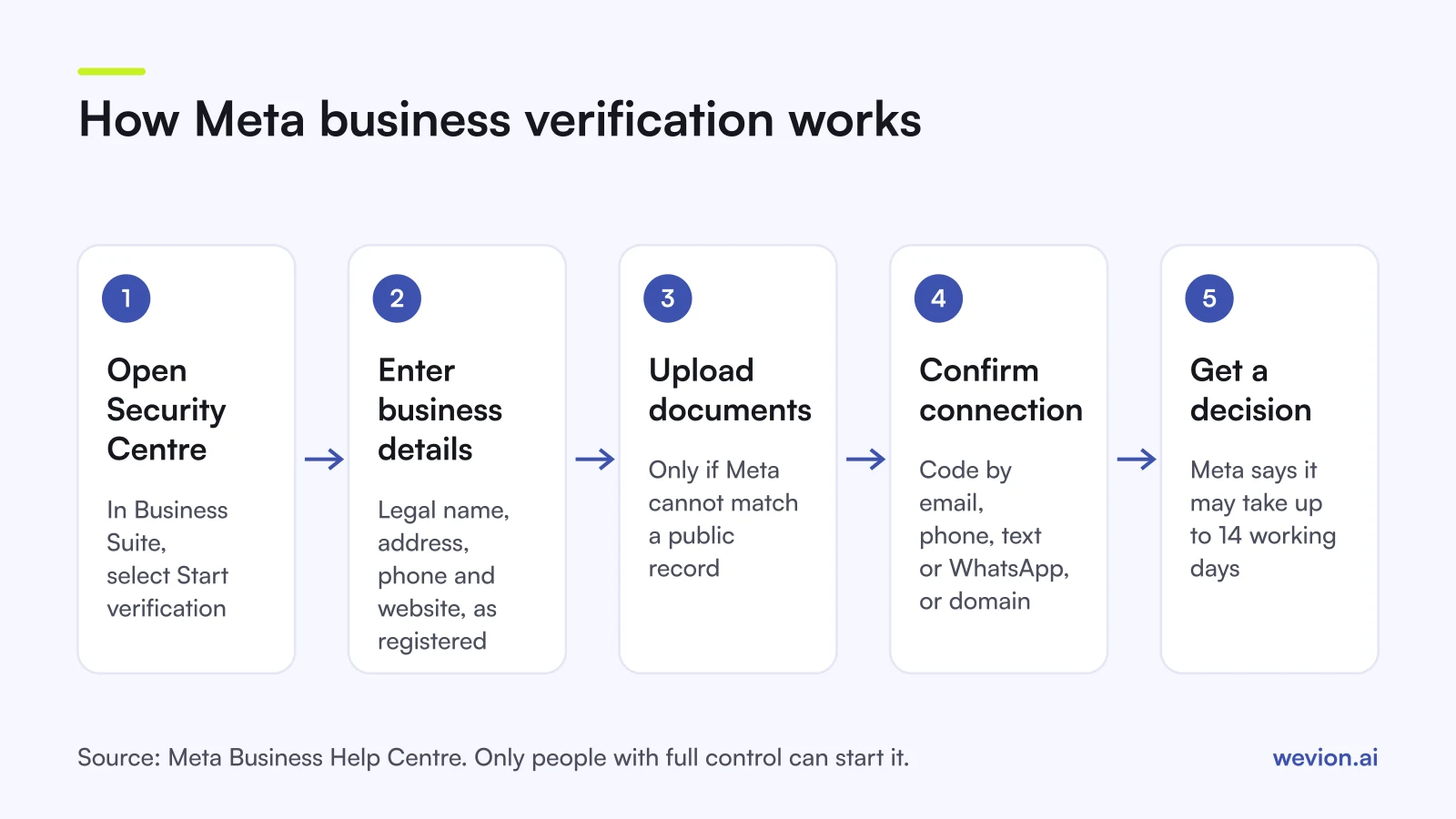
Verification in Meta Business Suite follows five steps in Security Centre. The labels below follow Meta's help centre wording as of November 2026.
- Open Security Centre. In Meta Business Suite, go to Settings, then Security Centre, and select Start verification.
- Enter your business details. Add the legal name, address, phone number and website. Meta tries to match them against public records.
- Upload documents if asked. If Meta cannot find a matching record, it asks for official documents that prove the legal name, and sometimes the address or phone number.
- Confirm your connection to the business. Choose a method: a code by email, phone call, text or WhatsApp, or domain verification.
- Wait for the decision. Meta says a decision may take up to 14 working days. You can follow the status in Security Centre.
Meta's help centre also says that editing your business details after verification can mean going through it again. Settle the legal name and address first, then verify.
Which documents does Meta accept?
Meta accepts official documents issued by a government or registry that show your legal business name. The document requirements page groups them by what they prove.
To prove the legal name, use a business registration or incorporation certificate, a business licence, articles of incorporation or a tax registration certificate. The name must match Business settings exactly.
To prove the address or phone number, the document must show the legal name together with the address or phone number exactly as entered. The accepted list varies by country, so check the page for your market before you upload.
Meta's troubleshooting page adds two rules that catch many submissions:
- No self-filed forms filled in by the business without an official signature or seal. Upload the approved certificate instead.
- Supported languages only. If your document's language is not supported, provide an English translation with the translation agency's official stamp.
Upload a clear, complete copy of every page Meta needs to read. A cropped scan that hides the name or seal is a simple way to lose a week.
How long does verification take?
Meta's help article says a decision may take up to 14 working days after you submit. If Meta matches your business to a public record and you confirm by email or phone, it can be faster, because there are no documents to review.
Plan around the upper limit. If a client needs a feature that depends on verification, start the process before the launch date, not the week of it. A hypothetical timeline: you submit on Monday 2 November, Meta asks for a second document on day 6, you upload it the same day, and the decision lands within the following 14 working days. Each request for more information can extend the total, so a clean first submission saves time.
Why does Meta reject business verification?
Most rejections come from a mismatch between the details in Business settings and the documents you upload. Meta's troubleshooting page lists the causes and fixes below.
| Reason | Fix |
|---|---|
| Document does not show the legal business name | Upload a document that shows the legal name exactly as in Business settings |
| Name on the document differs from Business settings | Change the name in Business settings to match the document, or upload a document with the listed name |
| Address does not match | Upload a document with the legal name and the full address as entered |
| Phone number does not match | Upload a document with the legal name and the same business phone number |
| Self-filed form without a seal | Upload the approved registration certificate with an official signature or seal |
| Unsupported language | Add an English translation stamped by the translation agency |
| Too many ID submissions by one person | Ask another admin with full control to submit instead |
If you are rejected, read the stated reason in Security Centre before you resubmit. Sending the same document again rarely changes the result.
How does business verification differ from Meta Verified and domain verification?
Business verification, Meta Verified and domain verification are three separate checks with different purposes, and passing one does not complete the others.
| Business verification | Meta Verified for businesses | Domain verification | |
|---|---|---|---|
| What it confirms | The legal entity behind a portfolio | The identity of a business profile, with a badge | That your portfolio owns a website domain |
| Cost | Free | Paid subscription | Free |
| Badge | No | Yes | No |
| Where | Security Centre | Meta Verified sign-up | Business settings, Domains |
| Main use | Advertising, billing, API and WhatsApp features | Badge, impersonation protection, account support | Control over who can edit links to your domain |
Domain verification is also one of the ways to confirm your connection during business verification. Meta's domain verification guide lists three methods: a meta tag on your home page, an HTML file uploaded to your site's root, or a DNS TXT record. Verifying the domain lets your portfolio control who can edit link previews and ads that point to it.
Meta Verified is described on Meta's own page as a paid subscription with a verified badge. If a client asks for "the blue tick", that is Meta Verified, not business verification.
Where does verification fit in account safety?
Verification is part of running a portfolio Meta can trust, but it does not protect ad accounts from policy enforcement. A verified portfolio can still have ads rejected or ad accounts restricted if its ads break Meta's Advertising Standards.
Check restrictions in Meta Account Quality, and read our guide to Meta ad account safety for the habits that reduce risk. If an account is already disabled, start with the first 48 hours after a disabled ad account.
Where Wevion fits
Once a client's portfolio is verified and set up, the daily work is running and checking campaigns across every account, and that is where a single view saves time.
Wevion connects Meta ad accounts through the official API with OAuth, plus Google, TikTok, Snapchat, Taboola and Outbrain through each platform's official API, and syncs data about every 15 minutes. Each client gets its own workspace, and team roles such as manager, media buyer, finance and viewer keep access in line with what each person does.
You can launch campaigns in bulk across platforms and set automated rules that pause, activate, change budgets or just send an alert when a metric crosses your threshold.
You can try it on your own ad accounts with a 14-day trial on the Pro plan. No card to start. We ask for one on day 7, or earlier if you use up the trial credits, and billing starts on day 14 only if you add it.
Key takeaways
- Meta business verification confirms the legal entity behind a business portfolio and unlocks certain advertising, developer, billing and spending features.
- Only people with full control of the portfolio can start it, in Meta Business Suite under Settings, then Security Centre.
- Match the legal name, address and phone number in Business settings to your official documents before you submit.
- Meta says a decision may take up to 14 working days; editing your details later can mean verifying again.
- Business verification gives no badge. Meta Verified is a separate paid subscription, and domain verification is a separate check of website ownership.