
Claude for Facebook Ads: Exports, MCP and Guardrails
Yuki Tanabe
Creative AI Strategist
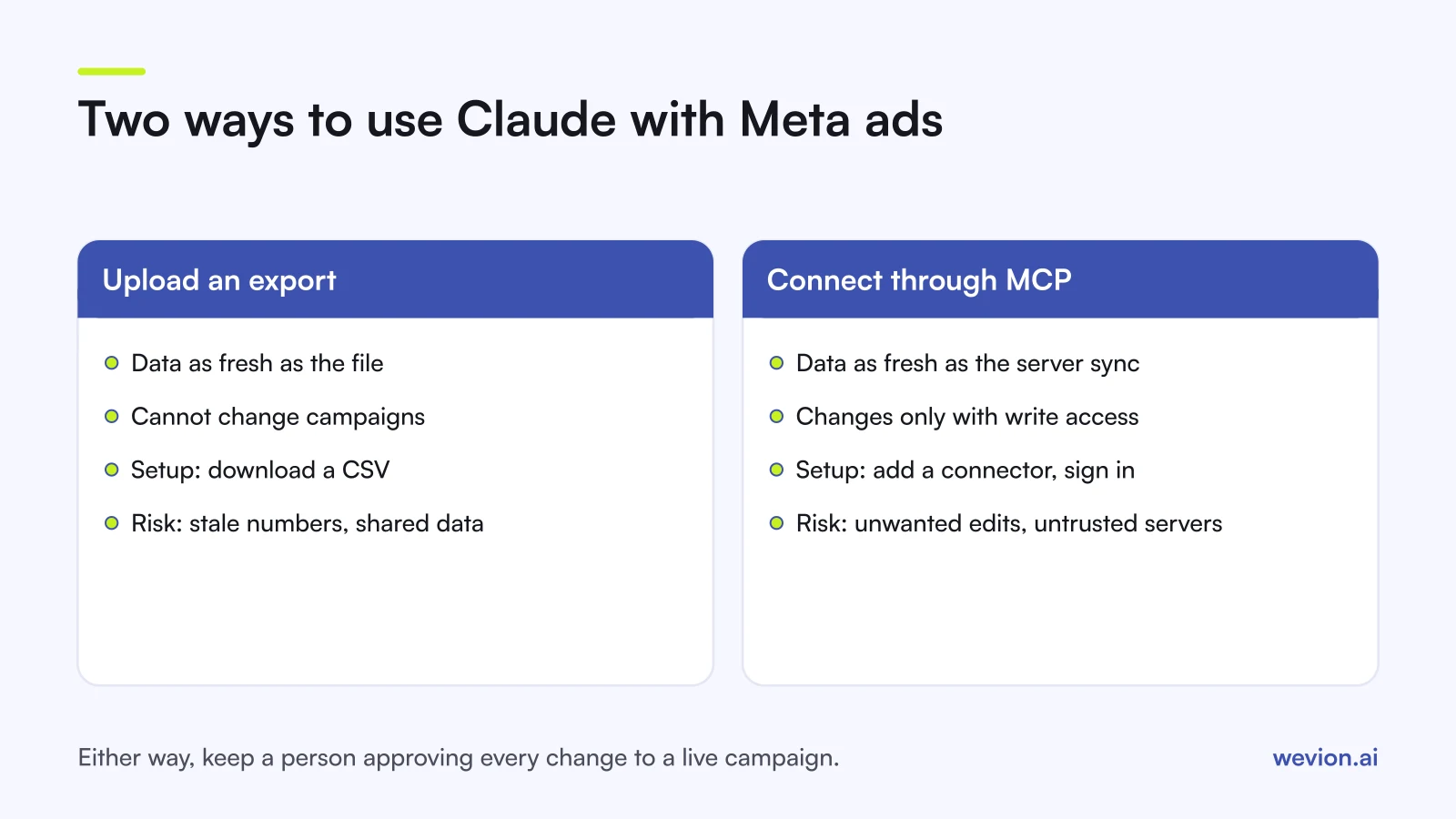
Using Claude for Facebook ads comes down to two routes. You can export data from Ads Manager and upload it for analysis, or you can connect Claude to your ad accounts through an MCP connector so it reads, and if you allow it, changes, campaigns directly. This guide walks through both step by step, explains what each route can and cannot do, and sets out the guardrails worth putting in place before an AI assistant touches an account that spends real money.
Quick answer: For analysis, export a report from Ads Manager, strip personal data and upload the file to Claude, which can analyse CSVs, draw charts and build spreadsheets. For a live connection, add an MCP connector, such as Meta's official Ads AI Connectors or a multi-platform ads MCP server, starting with read-only access. Review every action Claude proposes, and remember that what keeps an account safe is how a tool connects, not whether AI is involved.
If you want the background first, our guide to ads MCP servers explains MCP in plain words, and our breakdown of Meta's AI Connectors and MCP launch covers what Meta itself shipped. This article is the practical, Claude-specific version.
What can Claude do for Facebook ads?
Claude can do three kinds of work for Facebook ads: analyse performance data, draft copy and briefs, and, through a connector, act on campaigns. Which of these you get depends on how the data reaches it.
| Job | With an uploaded export | With an MCP connector |
|---|---|---|
| Spot ad sets above target CPA | Yes, as of the export date | Yes, on synced data |
| Charts and spreadsheets | Yes | Yes |
| Draft ad copy and briefs | Yes | Yes |
| Compare this week with last | Only if both are exported | Yes |
| Pause ads or change budgets | No | Only with write access you grant |
Drafting copy works the same way as with any assistant. Our ChatGPT prompts for ecommerce ads transfer to Claude unchanged, since the structure of a good prompt does not depend on the model.
Route 1: Analyse exported data, step by step
Analysing exported data is the lowest-risk way to use Claude for Facebook ads, because Claude never has access to the account, only to a file you chose to share. Anthropic's help centre says code execution and file creation are available on all plans, that Claude can analyse uploaded CSV and TSV files, generate charts and create Excel files, and that the limit is 30MB per file (Claude help: create and edit files).
- Export the right report. In Ads Manager, export at the level you want to analyse (campaign, ad set or ad), with a daily breakdown if you want trends. Include spend, impressions, clicks, results, cost per result, frequency and, for ecommerce, purchase value.
- Remove what you should not share. Ad performance exports rarely contain personal data, but check for lead form fields, customer names or client details. Follow your company's or client's policy on sharing account data with third-party tools.
- Upload and state the target. Give Claude your goal in numbers: "Target cost per purchase is €30. Spend is in EUR. The file covers 1 to 31 October."
- Ask specific questions. For example: "List ad sets that spent more than €200 with a cost per purchase above €45, sorted by spend", or "Plot frequency against click-through rate by ad and flag ads where frequency rose above 3 while CTR fell."
- Ask for the method. Request the formula or code used for each number, so you can see whether it averaged ratios or recalculated them from totals. Cost per purchase should be total spend divided by total purchases, not an average of daily costs.
- Check two or three numbers in Ads Manager. If those match, the rest of the analysis is probably sound.
The limit of this route is freshness. The analysis describes the account on the day you exported it, and every follow-up question about this week means another export.
Route 2: Connect Claude through MCP, step by step
Connecting Claude through MCP gives it a live link to your ad data, so it can answer questions about today's numbers and, where you permit it, propose or make changes. MCP, the Model Context Protocol, is an open standard that lets an AI assistant call tools offered by an outside server.
Claude supports custom connectors to remote MCP servers on Free, Pro, Max, Team and Enterprise plans, with Free users limited to one custom connector, and the connector form accepts request headers such as API keys (Claude help: custom connectors). On Team and Enterprise plans, owners add connectors for the organisation and members then connect individually.
- Choose the server. Meta's own Ads AI Connectors launched in open beta on 29 April 2026, and trade coverage named Claude among the supported assistants, with reporting, campaign creation and editing, and catalogue tasks in scope (PPC Land). If you run more than Meta, a multi-platform ads MCP server covers several networks from one connection.
- Start read-only. If the server offers read-only credentials, use them for the first weeks.
- Add the connector. In Claude, open the connectors settings, add a custom connector with the server URL, and sign in or add the key the server requires.
- Ask a harmless question first. "List my ad accounts and their status" confirms the connection without touching anything.
- Compare with Ads Manager. Check that spend and results for one campaign match what you see in Meta, allowing for the server's sync delay.
- Only then allow proposals. When you are ready for changes, ask Claude to propose a plan first ("pause ad sets above €45 cost per purchase with more than €200 spent") and approve each action one by one.
What risks come with connecting Claude to an ad account?
Connecting Claude to an ad account brings risks that are worth naming plainly, because they decide which guardrails you need. None of them is a reason to avoid AI. They are reasons to set it up with care.
- Unwanted changes. In MCP, the model picks which tools to call. A vague request can lead to an edit you did not mean.
- Untrusted servers. Anthropic's help centre warns that custom connectors use services that have not been verified by Anthropic, and that a malicious server can hide instructions meant to trigger unintended actions.
- Learning phase resets. Meta's learning limited help page says an ad set is marked learning limited when it is unlikely to get about 50 optimisation events in the week after its last significant edit, and significant edits can restart learning. Meta's own team reminded early users of the connectors to tell their agent about the learning phase, according to the same PPC Land report. Our learning phase guide covers what counts as a significant edit.
- Data use. On Claude's Free, Pro and Max plans, a model training setting under Privacy settings controls whether chats can be used to train future models. Anthropic says this does not apply to services under its Commercial Terms, such as Claude for Work and the API (Anthropic). Check which terms cover your account before sharing client data.
What about bans? Our investigation into whether Meta banned Claude users found no verified case of Meta banning an account for using an AI assistant, and Meta launched official AI Connectors in the same month as the panic. The credible reports point to how a tool connects: official APIs and sanctioned connectors on one side, browser automation and scraped sessions on the other. Our ranking of ways to connect AI to ad accounts by risk sets out the full ladder. No tool can promise an account will never be restricted, so policy-compliant ads and steady account behaviour still matter.
Which guardrails should you set before Claude touches a campaign?
The guardrails that matter most keep a person in charge of every change and limit what a mistake can cost. Set these before you grant any write access:
- Official connections only. Use Meta's own connector or a server that reaches Meta through the official Marketing API. Never give any tool your password or a pasted session token.
- Read-only by default. Use separate credentials for analysis and for changes, and grant write access only when you need it.
- Review every approval request. Anthropic advises reviewing tool approval requests carefully and avoiding "Allow always" unless you trust the server.
- Turn off write tools in Research. Anthropic notes that during Research, tools can run without further approval, so disable any tool that takes write actions first.
- Small, deliberate changes. Ask for budget changes as percentages with a cap, and avoid edits to many ad sets at once.
- Keep a log. Save the conversation or the tool call history for any session that changed a campaign, so you can trace what happened.
- Revoke when done. Remove access for people, tools or clients that no longer need it.
Where Wevion fits
The Wevion MCP server lets Claude, or any MCP-compatible assistant, work across several ad platforms from one connection instead of one connector per network.
Wevion connects Meta, Google, TikTok, Taboola, Snapchat and Outbrain ad accounts through each platform's official API, using OAuth for Meta, and syncs data about every 15 minutes, so an assistant connected to the Wevion MCP server answers from the same numbers you see in the Wevion dashboard.
To connect it, create an API key in the API keys section of Wevion with the right team selected, then add a remote MCP server in Claude using the Streamable HTTP (POST) transport and send the key in the x-api-key header. Each key is scoped to specific areas and actions, can be read-only or read plus write, carries its own team context and can be revoked at any time. The server only exposes the tools your key allows, and your MCP client asks before every action. The full setup is in our ads MCP server guide and on the MCP and CLI page.
If you would rather not set up a connector at all, Wavo, the AI copilot inside Wevion, reads your synced account data and proposes changes that go ahead only after you approve them.
You can try it on your own ad accounts with a 14-day trial on the Pro plan. No card to start. We ask for one on day 7, or earlier if you use up the trial credits, and billing starts on day 14 only if you add it.
Key takeaways
- Claude works on Facebook ads through uploaded exports or through MCP connectors.
- Exports are the lowest-risk route: Claude can analyse CSVs, draw charts and build spreadsheets, but the data is only as fresh as the file.
- MCP connectors give live access. Start read-only and test with a harmless question.
- Meta launched official Ads AI Connectors in open beta on 29 April 2026.
- Review every approval request, keep changes small and remember the learning phase.
- Meta has never linked bans to using AI. How a tool connects is what matters, and no tool can promise an account will never be restricted.